
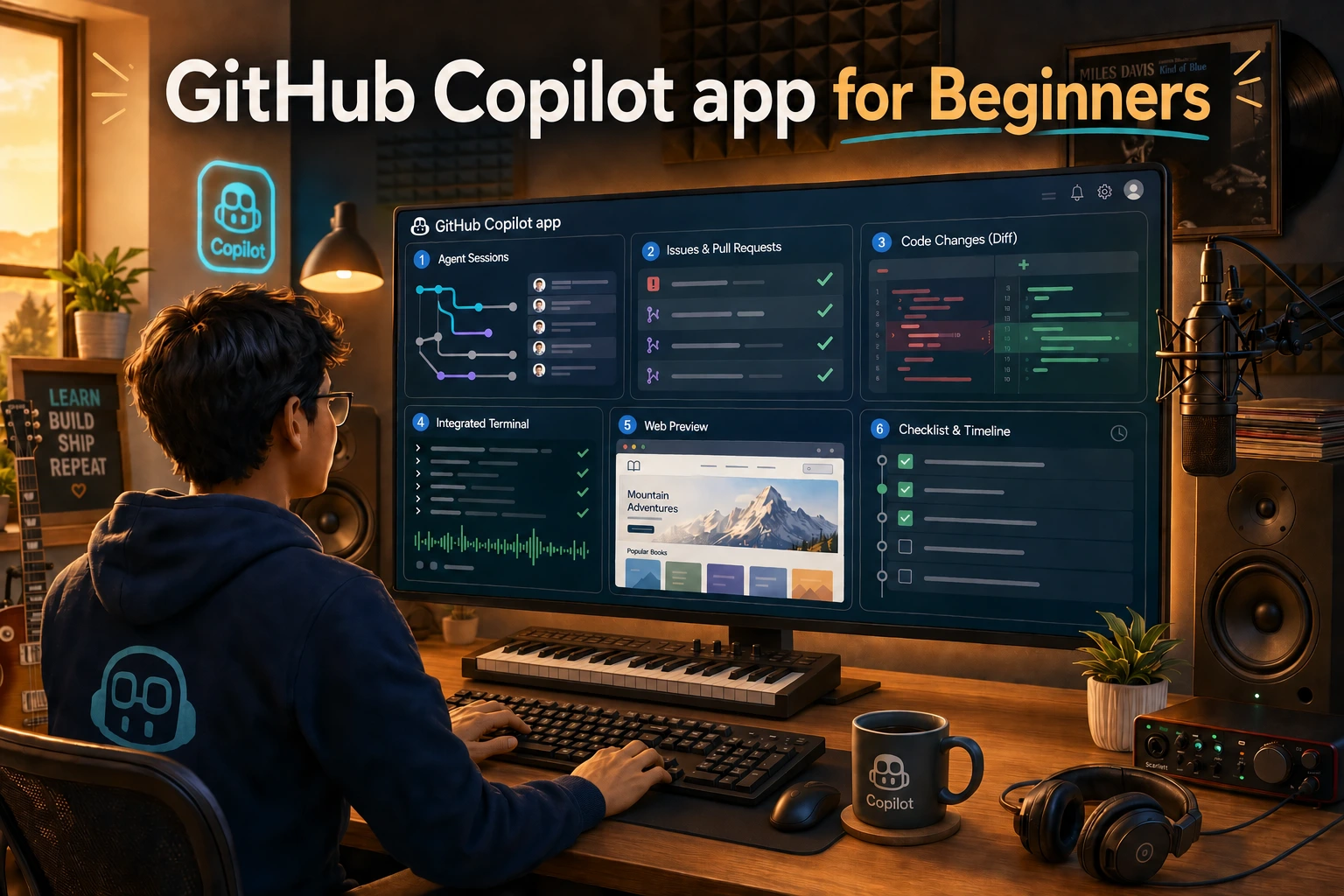
GitHub Copilot started in your editor, then moved into your terminal. Now it has a desktop app too. The GitHub Copilot app is where you run AI coding agents, keep an eye on what they’re doing, and review their work before any of it ships. Plans, diffs, test output, browser previews, issues, and pull requests all live in one window.
To help developers get comfortable with it, we put together a free, open source course: GitHub Copilot app for Beginners. There’s a short setup chapter followed by seven hands-on chapters, and you’ll use the same sample project from start to finish. You’ll need a Copilot plan, or you can sign in with your own model provider instead.
In this post, I’ll walk through what the course covers and how to get started.
What the GitHub Copilot app does
If you already use Copilot in VS Code or Copilot CLI, you might wonder why you’d want a separate app. I wondered the same thing. For me, the payoff is keeping track of agent work, which gets messy quickly once more than one task is running.
You’ve probably been there. Two agent tasks edit the same folder on the same branch, and now you can’t tell whose change is whose. The plan is buried in a chat, the diff is in your editor, the test output is in a terminal somewhere, and the pull request is in a browser tab. Half your time goes to figuring out where you left off.
Copilot app pulls all of that together. With it you can:
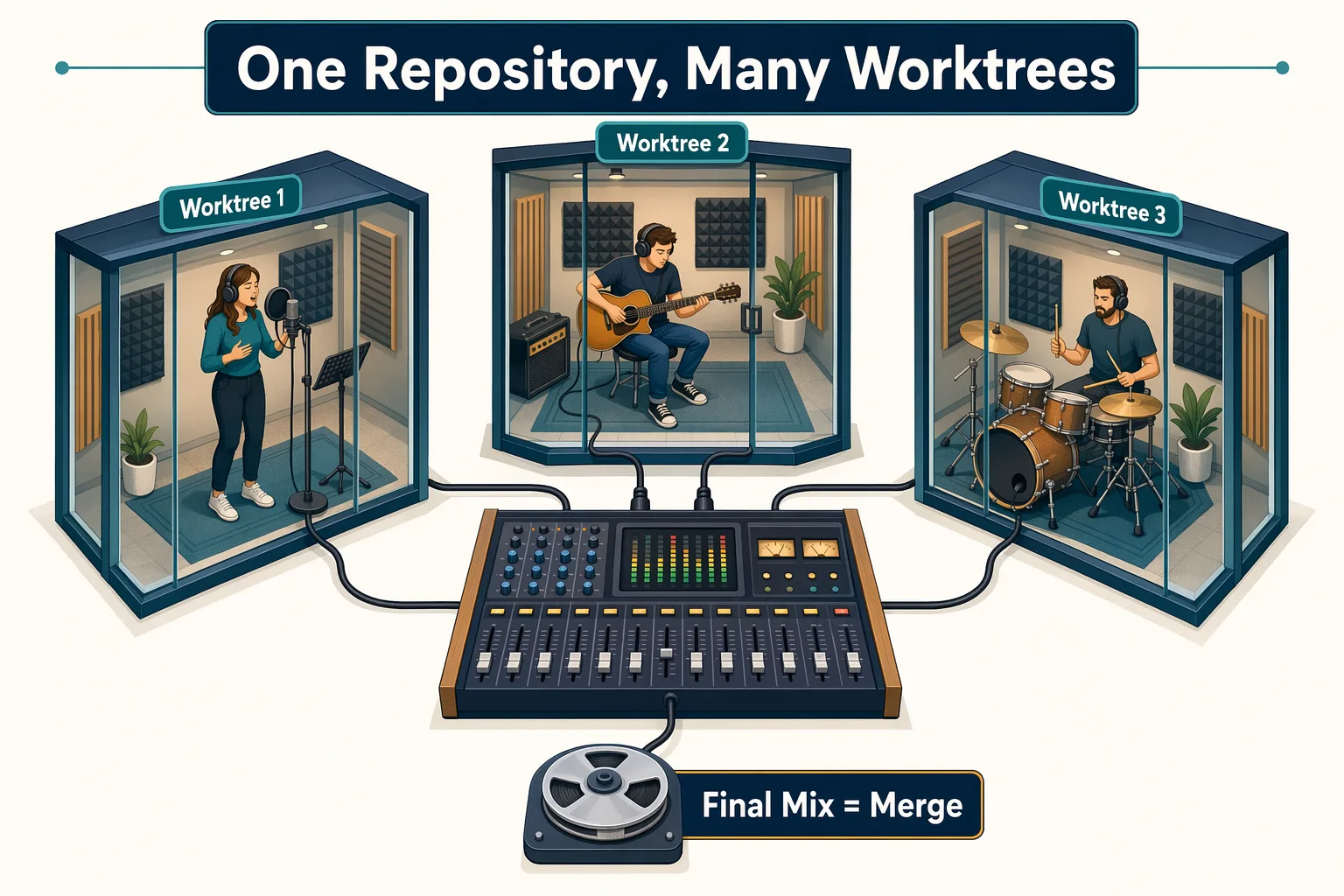
- Run project sessions that each get their own git worktree, so parallel tasks don’t step on each other
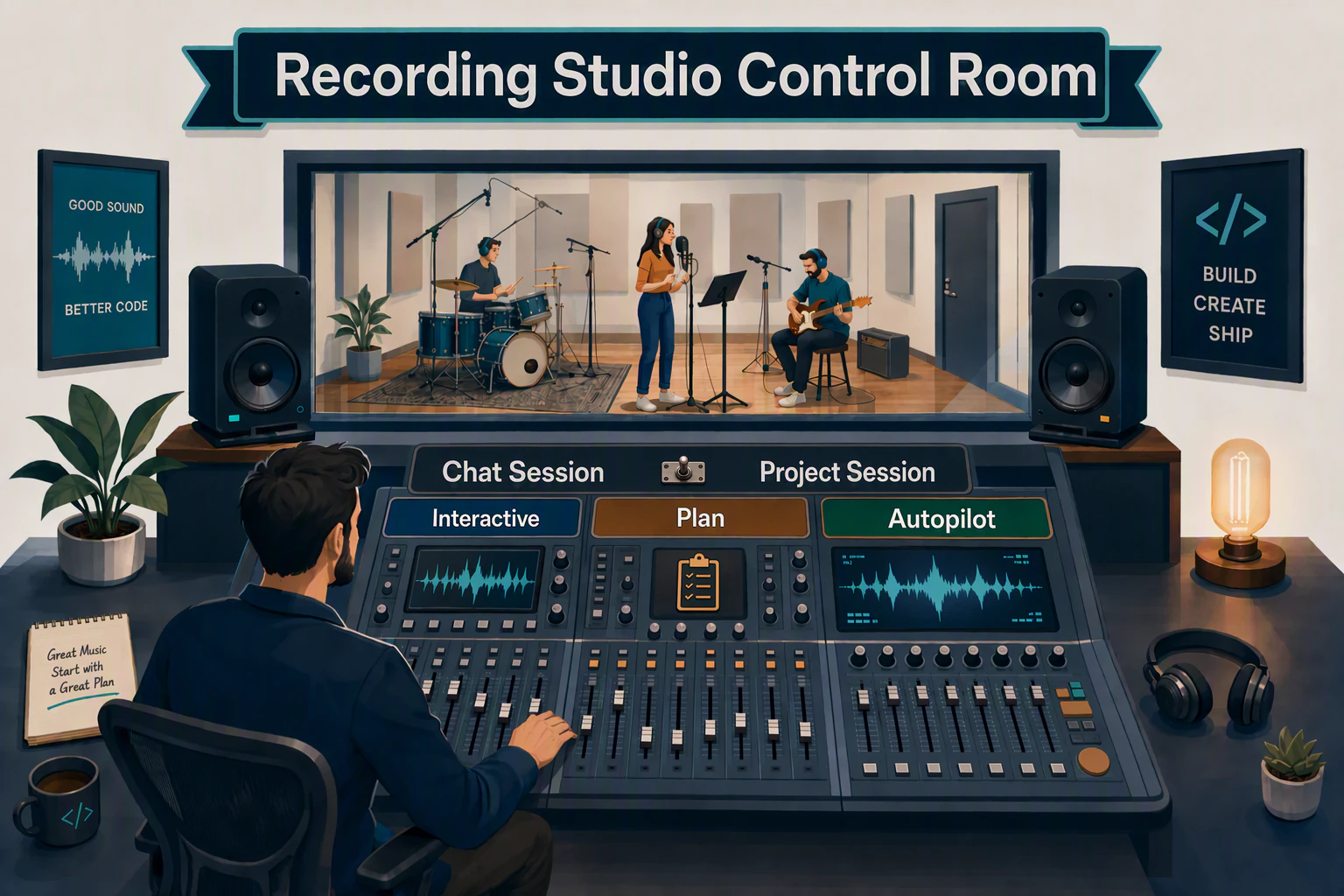
- Pick a session mode (Interactive, Plan, or Autopilot) based on how much control you want
- Check the diff, run tests, and preview the running app in a built-in browser
- Start work from GitHub issues and pull requests in the My work view
- Extend the app with skills, custom agents, MCP servers, plugins, and canvases
- Save prompts you run often as automations that run on demand, on a schedule, or when a GitHub event fires
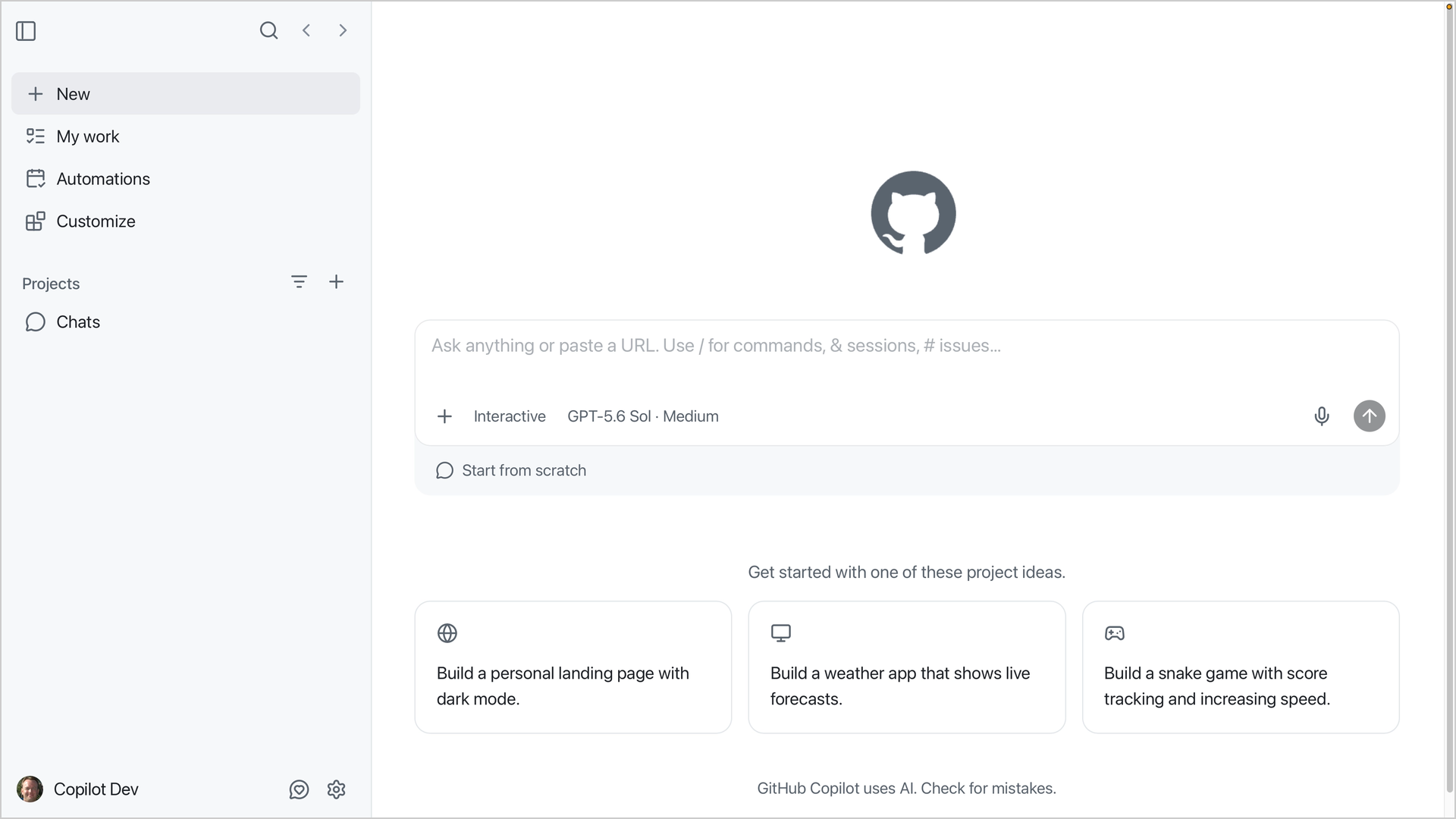
You don’t have to give up your editor. The app opens the same project in VS Code any time you want to read or edit code by hand.
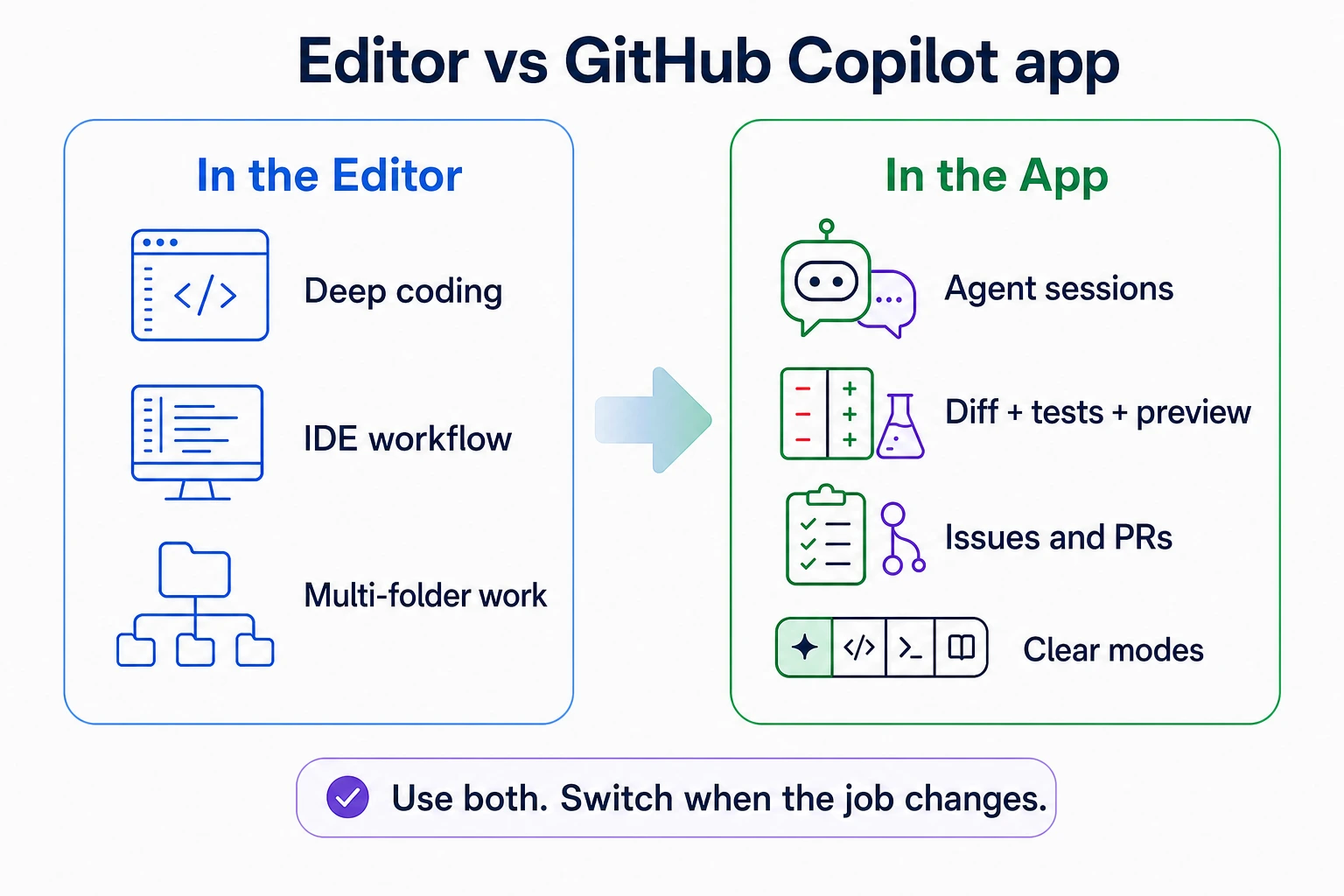
What the course covers
Every chapter uses samples/book-app-web, a small book collection app built with React, Vite, and TypeScript. You can search books, filter by genre and reading status, and see reading stats for whatever’s on screen. You can read through it in a few minutes, and it still has actual tests and a build step, which matters once you start asking an agent to change it.
Here’s a typical exercise from the development chapter. The setup script creates a practice branch with a bug: the reading stats ignore the active filters. You start a session from that branch, attach the matching issue with #, switch to Plan mode, and submit:
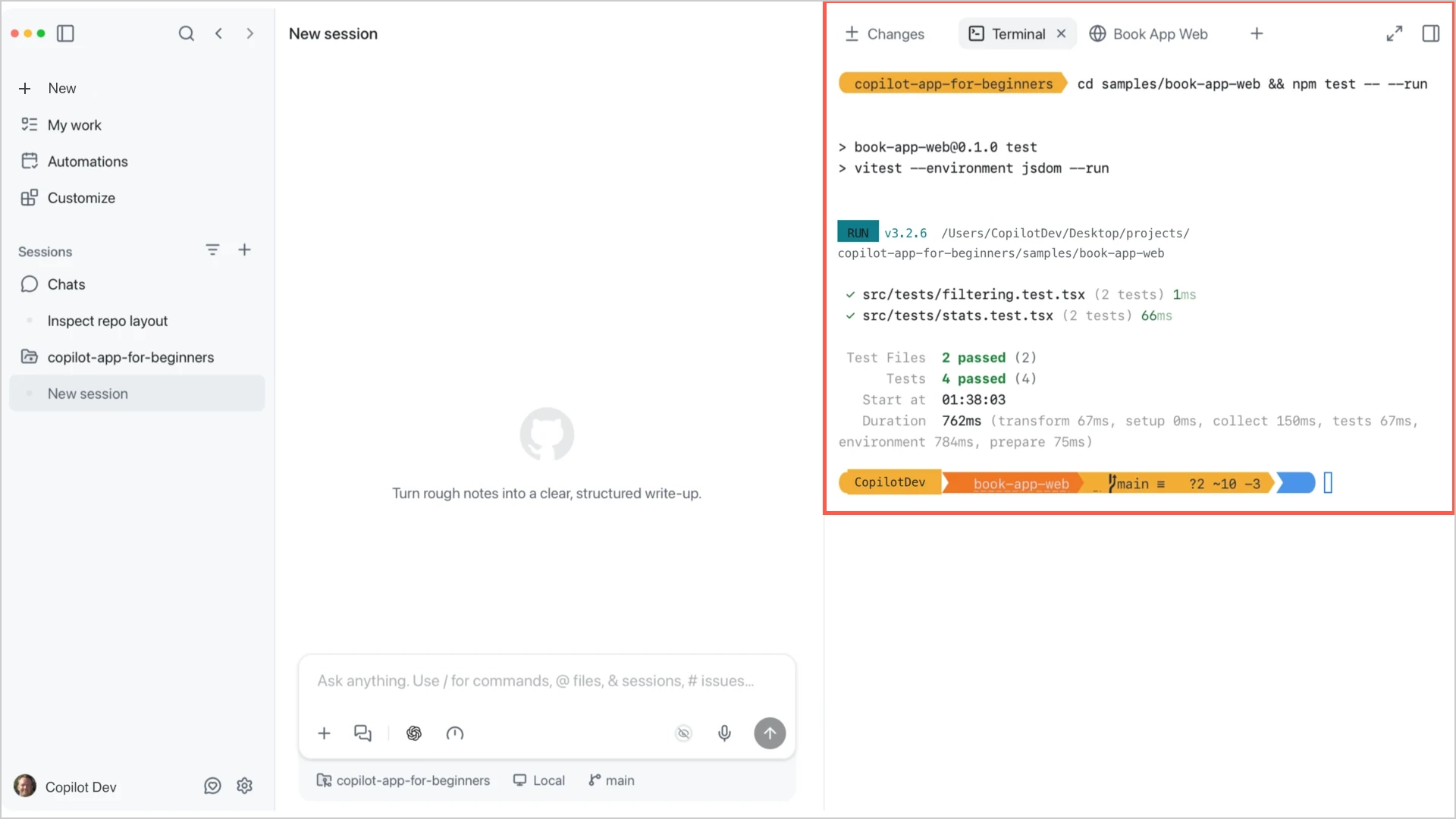
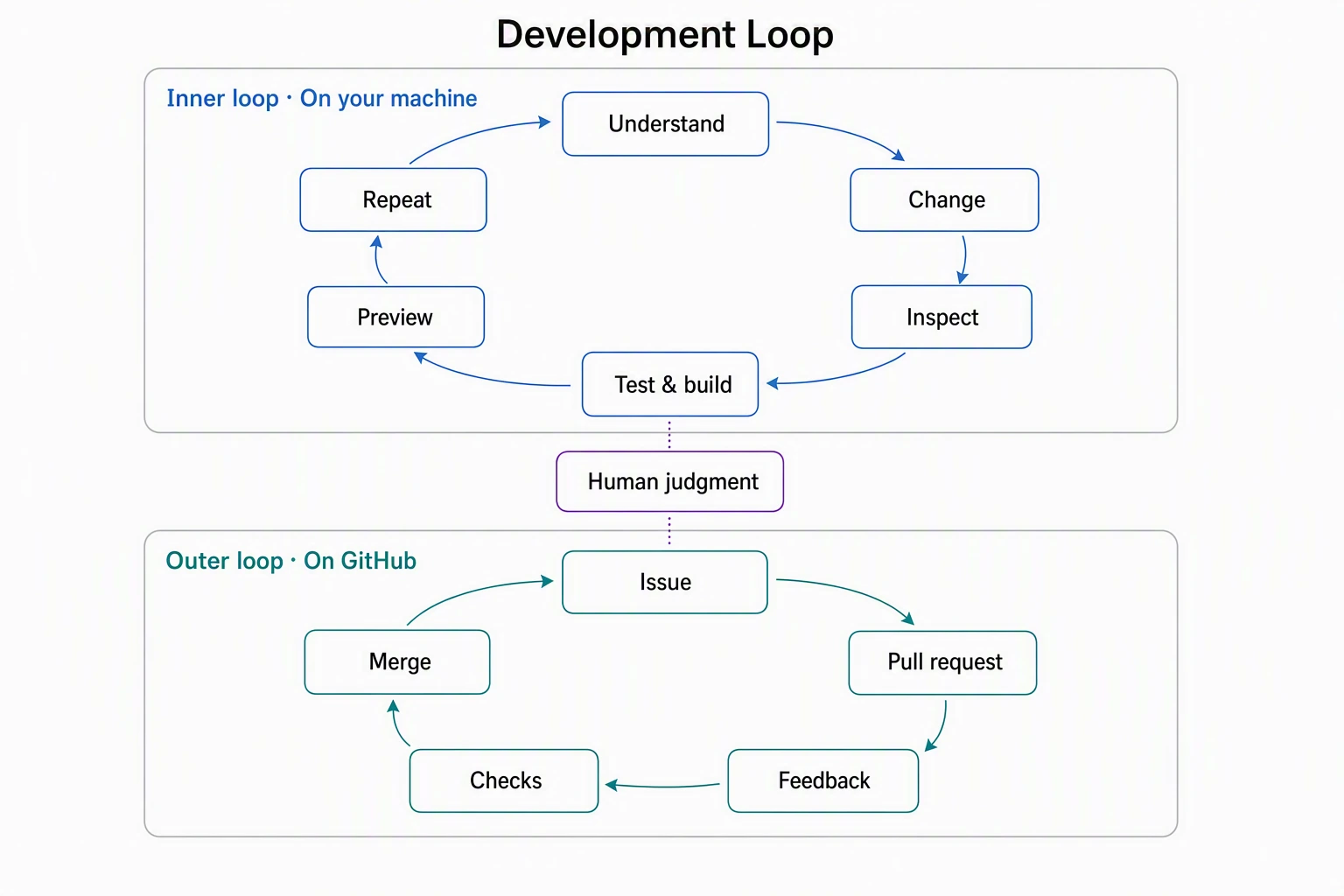
Use the attached issue as the source of truth. Review @samples/book-app-web/src, identify the root cause, and create a short fix and validation plan.Once the plan looks right, you switch to Interactive mode and have Copilot implement it. Then you check its work. Read the diff in the Changes tab, run the tests in Terminal, and open the app in the Browser tab to make sure the unread count actually changes when you filter. Copilot will happily tell you the bug is fixed. The course has you confirm it yourself.
Here are the chapters in the course:
- Setup: Install the app, sign in, fork the course repo, and seed practice issues and pull requests
- Tour the App: Why you’d use the app, chats versus project sessions, session modes, and model and reasoning settings
- Sessions, Worktrees, and Context: Isolated sessions, git worktrees, and using
@,#, and/to give Copilot the right context - Development and GitHub Workflows: The inner loop (change, diff, test, preview) and the outer loop (issues, pull requests, review comments, and failing checks)
- Skills and Custom Agents: Update a reusable review skill and build a read-only custom agent that explains code without editing it
- MCP Servers and Plugins: Pull in up-to-date documentation through the Context7 MCP server and use a skill that ships in a plugin
- Canvases: Use
/create-canvasto build a session board where you and the agent both track plan steps and validation results - Automations: Turn a manual status report into an on-demand automation, schedule it, and learn about event triggers and cloud automations
You don’t need any background in AI or agentic development to get started.
Who this is for
If you’ve ever watched an agent make a dozen changes and wondered how you’re supposed to check all of them, start here. The course is aimed at developers who want to direct agents and review their work, rather than just chat with them.
It’s also a good fit if you already use Copilot in your editor or in the terminal. You’ll see where the desktop app fits alongside those tools and when it’s worth switching over. Teams trying to decide how much work to hand to agents will find worktrees, session modes, and the review loop useful for keeping a person involved. And if you’re a student or teaching yourself, new terms are explained when they first come up, there’s a glossary, and every chapter ends with an assignment.
Some familiarity with GitHub, Git, and npm helps. If you can clone a repo and run npm test, you’re ready.
How the course teaches
Each chapter follows the same pattern: why the topic matters, a real-world analogy, the core concepts, hands-on exercises with the sample app, and then key takeaways and an assignment.
The analogies all come from a recording studio. Setup is getting the studio ready and running a soundcheck. The session modes are like a producer in the control room: Interactive is directing a take with frequent check-ins, Plan is charting the arrangement before anyone plays a note, and Autopilot is handing a well-defined task to someone you trust.
The studio theme runs through the whole course. Worktrees are separate recording booths for the same song, so the drummer and the vocalist don’t bleed into each other’s tracks. The development loop is record, play it back, and do another take. Skills are song charts. Canvases are the arrangement board on the wall, and automations are a sequencer that plays a programmed pattern when you hit play.
If I had to pick one idea from the course for you to remember, it’s trust the evidence. A confident answer from Copilot isn’t working software. Before you call something done, you look at the diff, the test and build output, the running app, and the checks on the pull request. You’ll also practice the judgment calls that come with this. Should this be a chat or a project session? Is this a Plan task or an Autopilot task? Is this prompt something you run often enough to turn into an automation? None of those have a single right answer, and the course doesn’t pretend they do.
Get started
The course is free and open source. Download the GitHub Copilot app, fork the repo, and start with Chapter 00. Setup takes about 20 minutes, and by the end of it you’ll have a session running against the sample app.
GitHub Copilot app for Beginners
To go further, check out the GitHub Copilot app documentation and the video series. There’s also a GitHub Copilot CLI for Beginners course if you’re interested in working with GitHub Copilot directly in your terminal.
Subscribe to GitHub Insider for more developer tips and guides.