
Have you ever had several AI coding agents running and wondered which ones were still working, waiting for your input, or finished?
I wanted a clearer way to see that status. As I thought about how to show it, an animated character seemed like a useful option. It could react to changes in agent activity, so I could see what was happening at a glance.
That idea became Agent Buddy, an animated companion that runs on a small ESP32 device, on your desktop, or both. I built and refined it using GitHub Copilot CLI and the GitHub Copilot app, with contributions from other developers along the way.
I had never worked with this type of board, and it had been years since I had touched C++. My first question to Copilot was about how to get started with the device at all.
Part 1: Getting a character onto the device
Starting with a photo of the box
The first board I bought was a Waveshare ESP32-S3-Touch-AMOLED-1.75-B. It has a round 1.75” AMOLED touchscreen, support for Wi-Fi, and a connection for a little speaker that came with it. The colors look great in person. The touchscreen was…meh. It worked, but felt nothing like a phone screen.
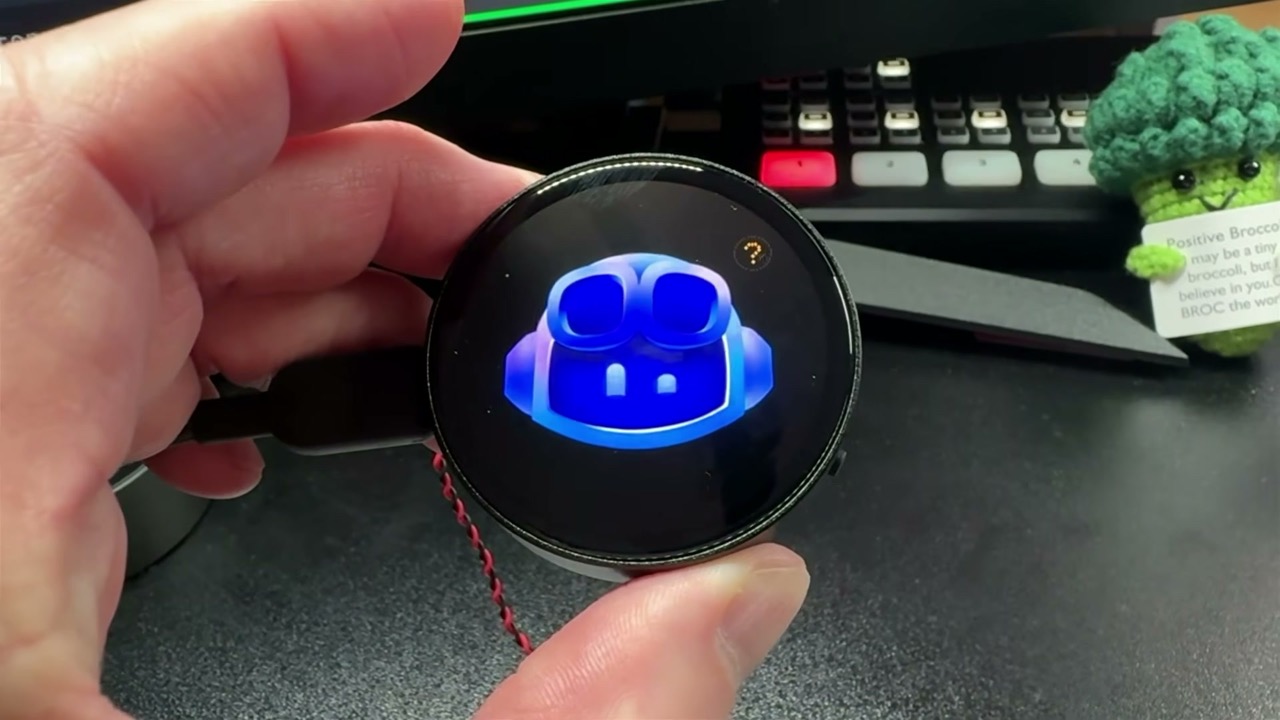
The real device running an early version, from my original YouTube walkthrough. That September video covers the hardware experiment; the desktop app and guided setup came later.
I took a picture of the device and its box, gave it to GitHub Copilot CLI, and asked:
I just got this ESP32 device but don’t know how to get started.
Copilot identified the model from the photo and helped me compare Arduino IDE with ESP-IDF, Espressif’s development framework. I went with Arduino because Waveshare supplied examples and the libraries needed for the screen and other components. Copilot installed the IDE through Homebrew on my Mac and walked me through adding the ESP32 board support.
I started with the vendor demos to check the display and touch. Even the speaker needed some investigation. The music-player screen looked like it should play audio, but that example didn’t initialize the audio output. Switching to the audio example got sound working.
Once those basics worked, I could try the character I actually wanted on the screen.
Smooth movement that looked wrong
For the character, I used reference artwork from GitHub’s branding page. I wanted the head to look left, right, up, and down, with random pauses and occasional blinks. The motion needed to feel like someone looking around.
The first approach deformed the existing artwork to create those turns. It moved, but the result was strange. The goggles and head changed shape as they turned. Making the transition smoother didn’t make it look more natural.
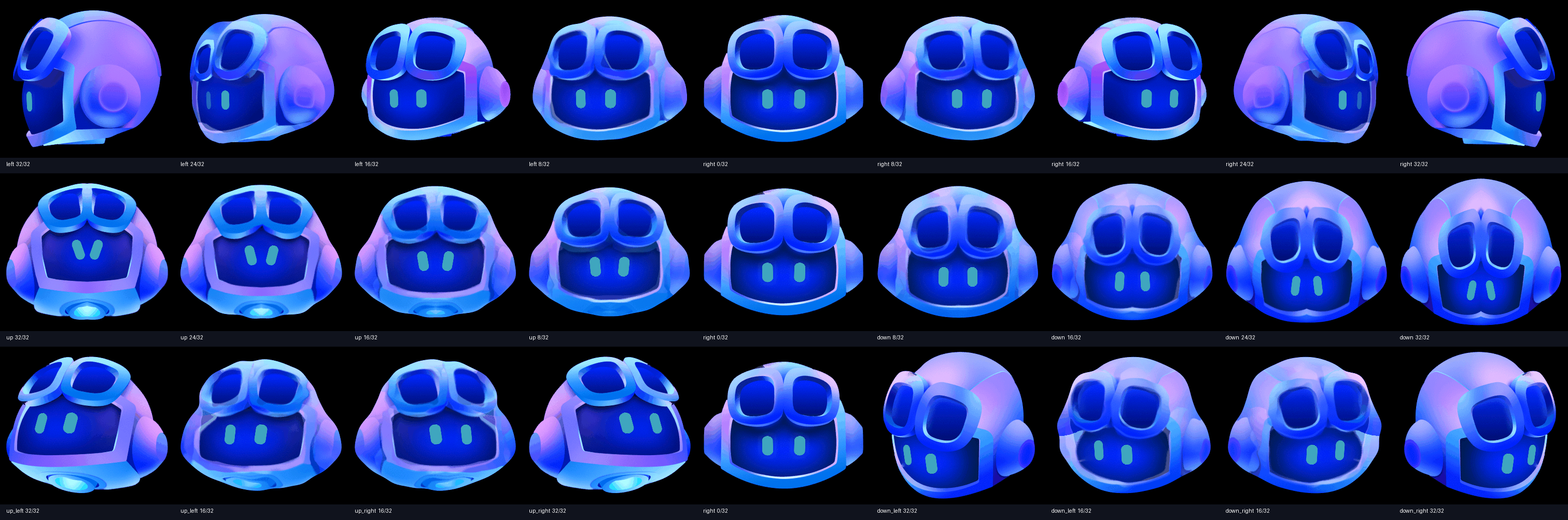
The earlier morphing approach. Some intermediate poses have overlapping goggle outlines and distorted head shapes. Click the image to see the full-size comparison.
One of my messages to Copilot was:
He’s doing a really weird “morphing”.
I then asked Copilot CLI to create sprite sheets using the GPT Image model through an image-generation skill I created. That skill supplied the instructions and tools for creating the sprite images.
A sprite sheet contains separate images of a character in different poses. Playing those images in sequence gives you the animation, much like frames in a cartoon.
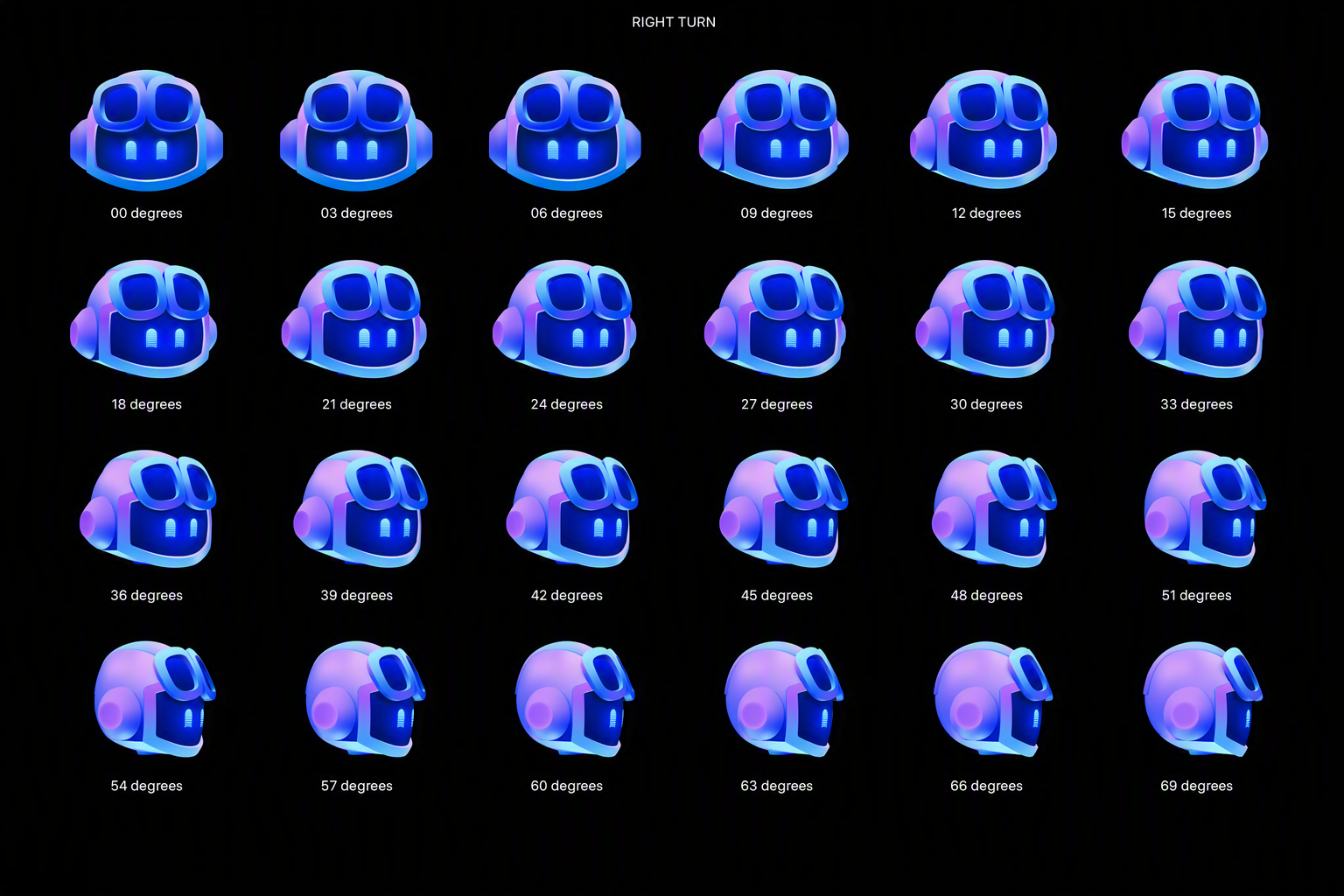
One of the project’s sprite sheets: 24 poses for a right turn. Read left to right, then continue on the next row. Click the image to see the full-size sheet.
That approach worked much better for this artwork. I built out the different directions and the intermediate poses, then added blinking. I also tried crossfading between images, which mostly gave me overlapping faces. So I kept that off and worked on the poses and playback timing instead.
The image model was part of the development process, by the way. The device plays prepared images locally. It does not call an AI model every time the character turns its head.
Building a preview before another upload
I quickly discovered that repeatedly flashing the board, or writing new firmware to it, took way too long for small animation changes. I asked Copilot to build a local web app so I could review the movement on a larger screen first.
That became the Character Studio, now called Character Lab. It let me play an animation slowly, pause it, and step through individual frames. I could work on a particular direction or expression before uploading it to the ESP32. The useful part is that it uses the same C++ animation code as the device, so I could review the actual animation logic.
The C++ runs as a compiled program on my computer, not directly in the webpage. A local Python server starts the renderer and passes it requests from the browser controls. The renderer returns the frame’s pixels, and JavaScript draws them on an HTML canvas:
Webpage controls -> local Python server -> native C++ renderer
Webpage canvas   <- frame pixels        <- native C++ renderer
That gave me a preview without a separate JavaScript version of the animation to maintain. I still needed to check display behavior, memory use, and frame rate on the ESP32 itself.
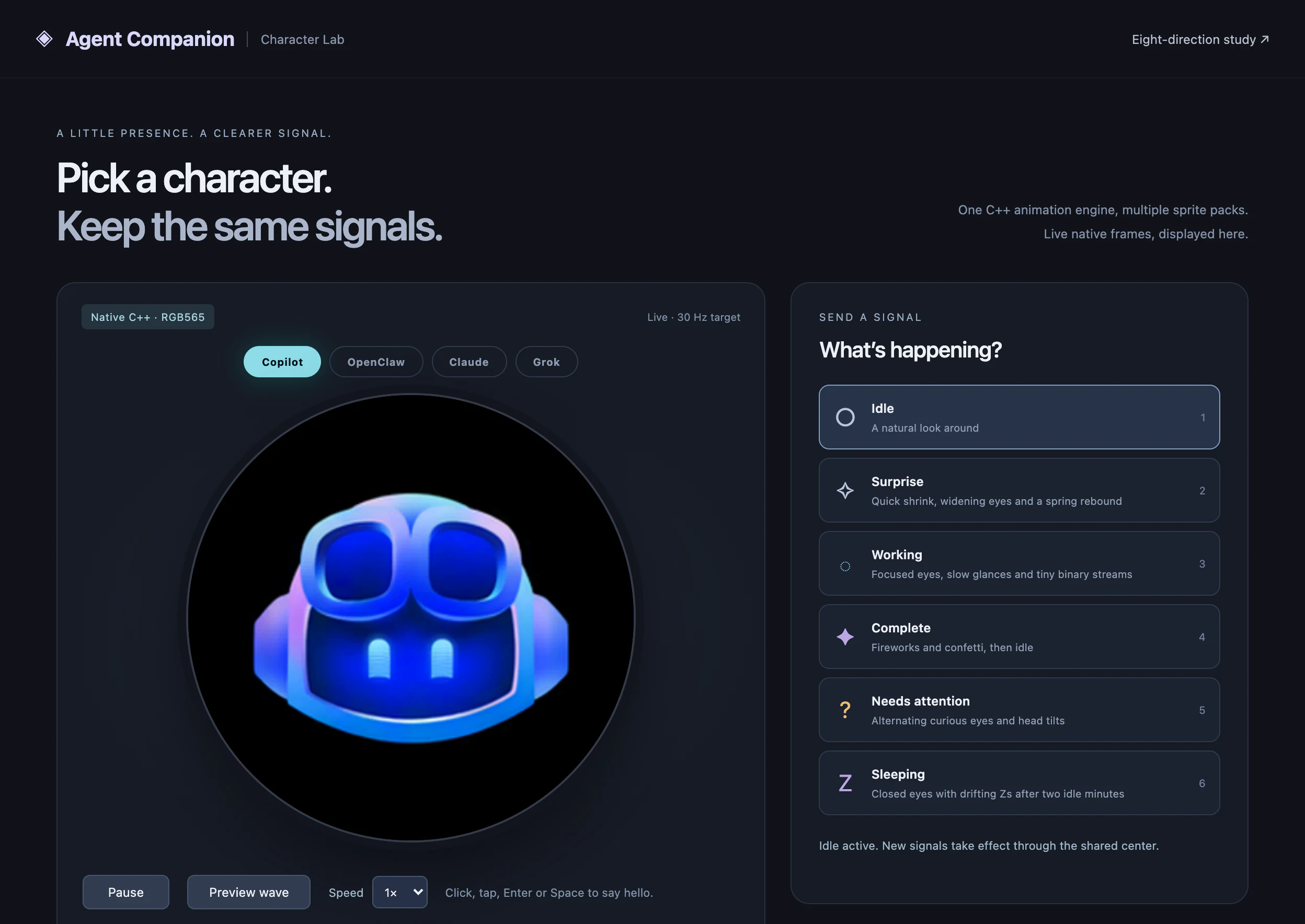
The feedback got very specific. The character looked too far up and down, so I reduced the travel. Sometimes it turned and then jumped straight back to the center. I wanted it to return smoothly before starting another direction.
Touch reactions took several rounds too. Widening the eyes was a start, but the head needed to react as well. I added a quick movement and a smooth return instead of just changing the eyes.
This is where much of the early time went. In the video, I estimate that I spent nearly half a day getting the animations right. That was only the animation refinement, not the whole project.
Making it run smoothly on the ESP32
An early device run reported about 8 frames per second. That was well below the smooth motion I wanted.
The board had 16 MB of flash storage and 8 MB of PSRAM, external RAM available to the processor. A collection of full-color images can use that space quickly. Adding several stages of blinking to every pose makes it worse.
The firmware compressed the image data and stored blinking as small images of only the eye regions that changed. Rendering and display work ran across the processor’s two cores. By the early releases, hardware measurements showed sustained playback at 30 frames per second.
I asked Copilot to check memory use and stability as well as frame rate. A character that looks good for a few seconds still needs to keep running on the desk.
I did not write the early C++ implementation myself. Copilot generated it, and I inspected it, asked for reviews, and kept refining the result. The work continued across Copilot CLI and eventually the GitHub Copilot app as the project grew.
The character could now look around and react to touch. Next, I needed it to respond to what my coding agent was actually doing.
Part 2: Turning the experiment into Agent Buddy
Connecting it to Copilot
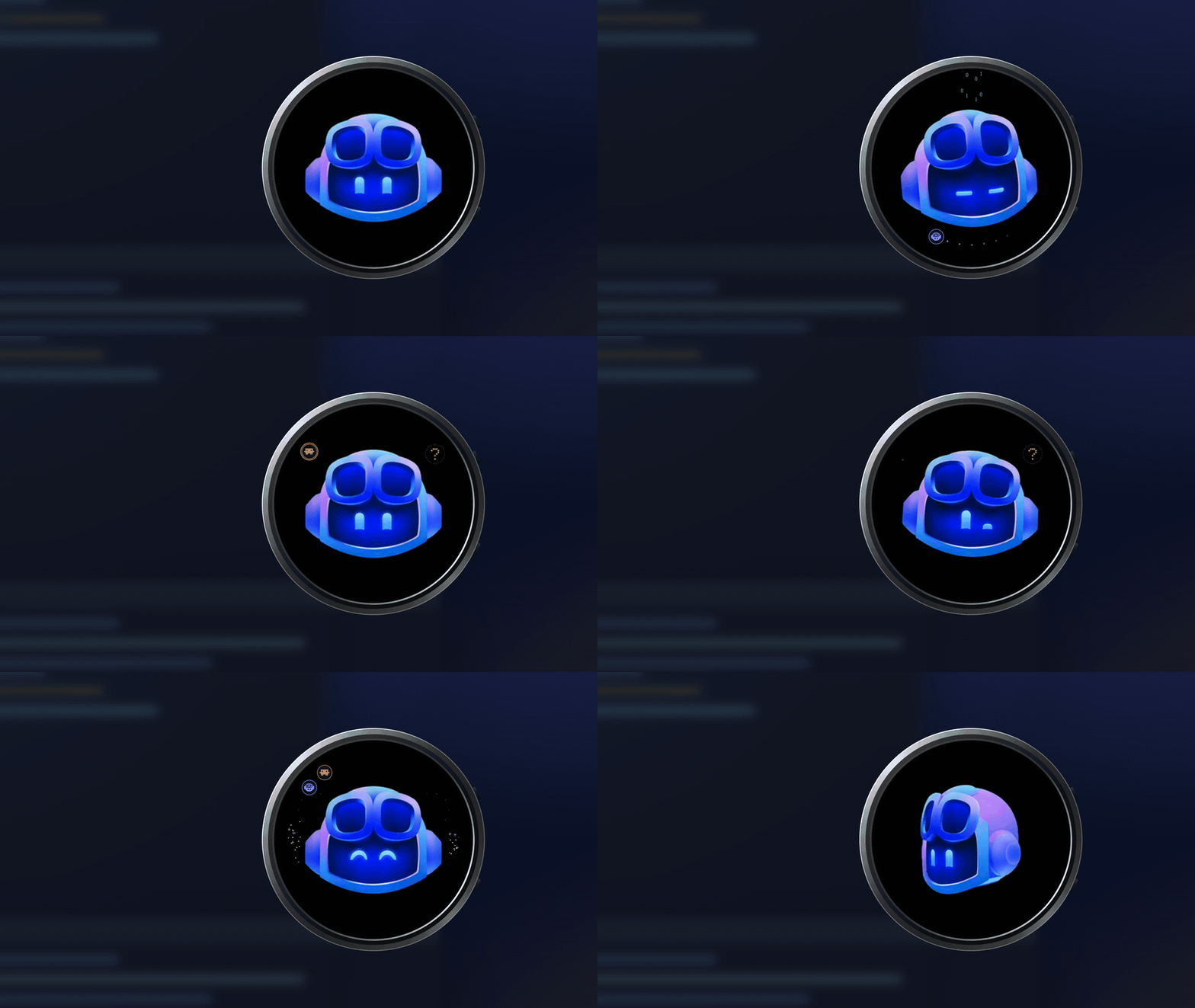
I added expressions for agent activity. The Working animation got focused eyes, a ring around the character, and small zeros and ones flowing above its head. Complete got a short celebration.
For Needs attention, I wanted the eyes to alternate and the head to tilt, similar to a dog trying to understand what you said. That took a few rounds of feedback in Character Lab too.
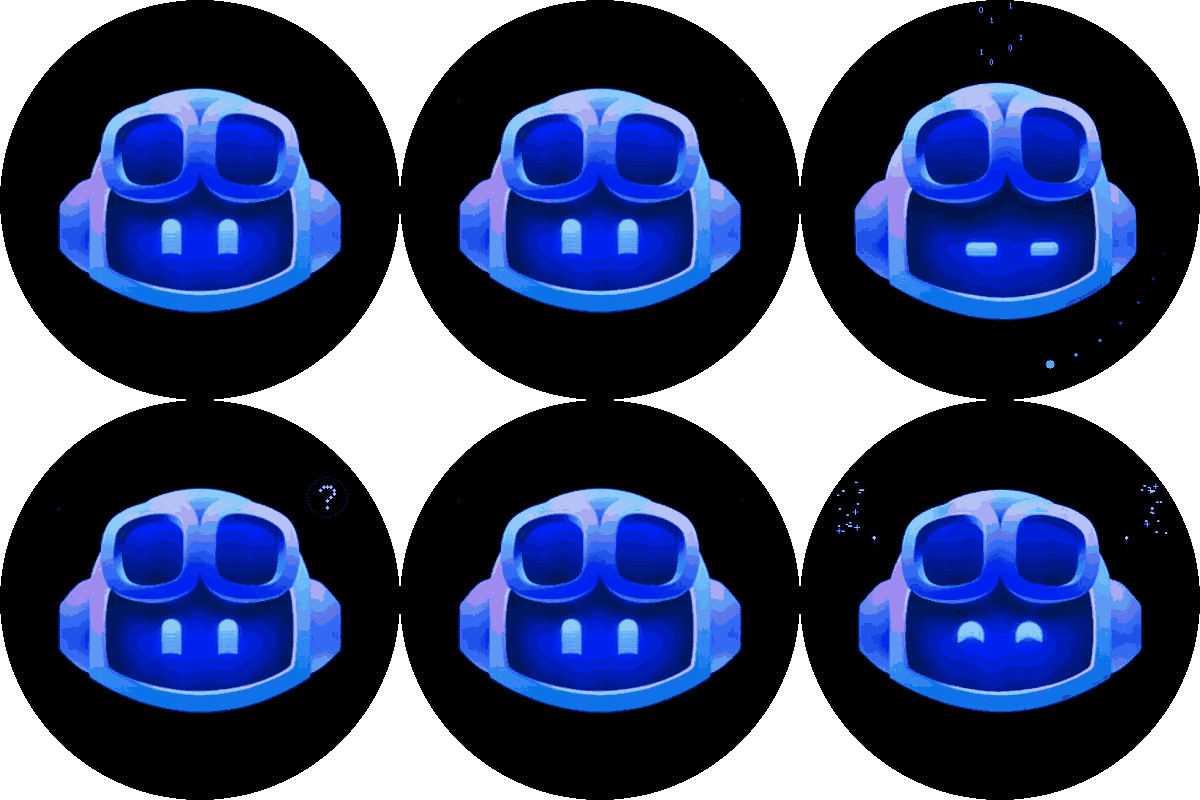
With the expressions ready, I asked Copilot how to connect them to agent activity in the CLI.
I used hooks: small commands that run when an agent reports events such as starting work, requesting permission, or finishing. I specifically asked for the background service to use Node.js and TypeScript. The device firmware stayed in C++.
The first integration used USB:
Agent event
    -> local companion service
    -> USB
    -> character state on the device
The service has to do more than forward the latest event. If two sessions are working and one finishes, the character should not celebrate as though everything is done. If another session needs approval, that needs to be visible even while work continues elsewhere.
I added session tracking and combined those events into the state the character should show. Small badges later made it possible to see which agent was involved.
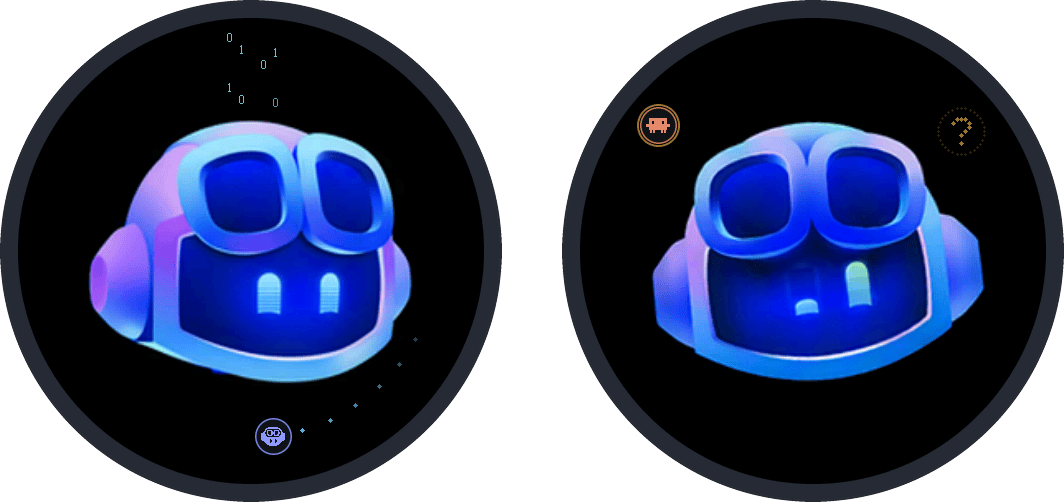
The character stays the same, while the badge identifies the agent: Copilot working on the left, Claude Code needing attention on the right.
I configured the hooks for my user account rather than for one project. Sessions in the GitHub Copilot app could drive the character alongside Copilot CLI sessions. The tools I was using to build Agent Buddy could also supply the activity it displayed.
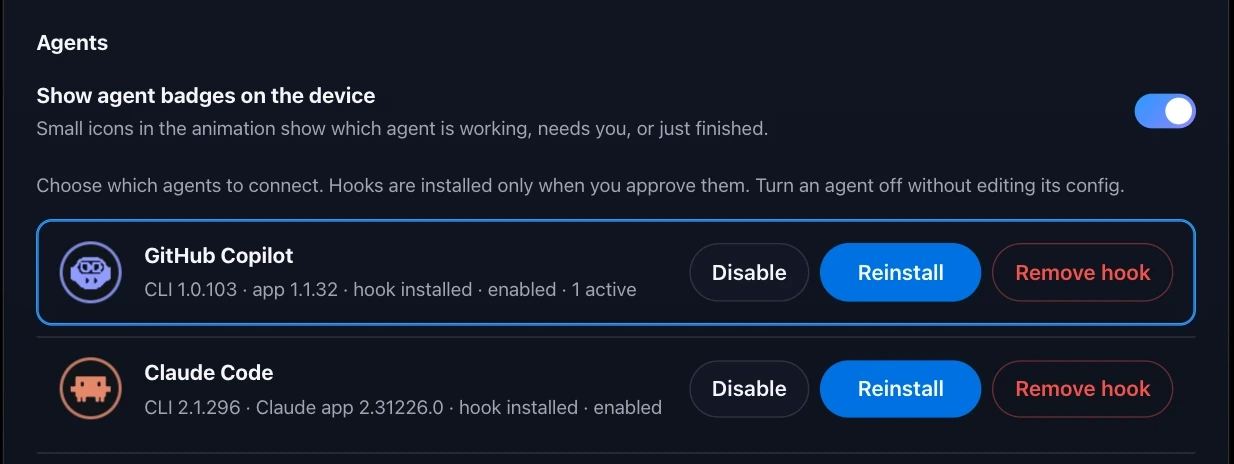
The Agent Buddy desktop app’s Settings, shown with demo values. The connection rows include both CLI and desktop-app detection.
The hook demonstration in the video shows the sequence with simulated events. I also tested the real integration through working, attention, back to working, and completion.
Agent Buddy handles those events locally. It does not need its own cloud service or account, although the coding agents still use their normal models and subscriptions. Once the events could control the character, I started adding more behavior around those states.
More personality, more characters
I added optional sound cues and a sleep cycle. I like having the sounds come from a device separate from my laptop (although that can be toggled on and off), which I talk about in the video. After a period of inactivity, the character closes its eyes and lets a few Zs float upward.
OpenClaw was the next character. It shared the same states, but had its own movements, including a little walking motion while working. The sleepy peek shown near the end of the video is probably my favorite. Even that took some adjustment because the eyes initially opened too far.
Adding another character made storage a bigger concern. The early OpenClaw version used a microSD card. I wanted people to be able to pick a character without rebuilding the firmware, so the project moved to installable character packs. The current device keeps one selected pack in flash storage.
Darren Robinson submitted the Claude character in a PR. Image generation had trouble keeping Claude’s box-like shape consistent. Darren generated the pose images from a 3D box model before packaging them for the device.
I didn’t need every character to be created the same way. The device could play the finished images through the same animation system.
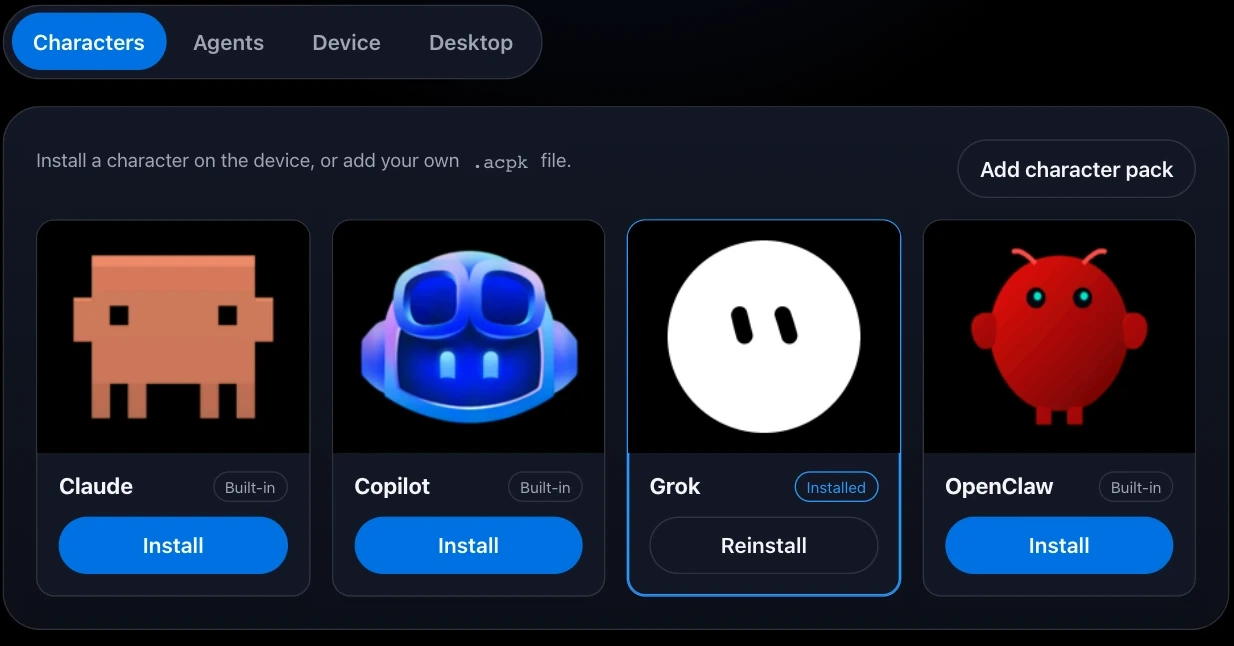
The character is also separate from the agent it represents. You can use the Copilot character while Claude Code is working, for example. The badges identify which agents are active.
Separating the character data from the engine became useful for more than adding characters. I could also use those packs outside the ESP32.
Bringing it onto the desktop
By early October, the character was moving onto the desktop. After discussing a desktop version with Darren on X, he built the initial desktop companion. I then extended it to include the device’s effects and badges, along with the shared animation engine.
This meant you could use the character without buying a device, or show it on the device and desktop together. This is Agent Buddy’s own desktop app, separate from the GitHub Copilot app I was using during development.
A recording of the desktop app responding to demo events. Watch the smaller MP4 version.
During the early review, the desktop animation didn’t match everything on the ESP32. Some effects and badges were missing. I wanted the same character behavior in both places, and I didn’t want two separate animation implementations to maintain.
I moved the desktop app to shared C++ animation code, compiled to WebAssembly. WebAssembly lets that code run inside the app’s web view. The app uses Tauri, a Rust framework for building desktop apps with a web interface, and the same character packs as the device. Automated comparisons check the rendered output against the native engine.
The desktop work also had its own requirements. The character needed to be movable, clicks on empty areas needed to reach the application behind it, and state changes should not take keyboard focus. I also spent time reducing CPU and memory use, since the app stays running alongside other work.
I wanted the desktop app to be something people could download and run, without setting up the source code first.
Making setup less intimidating
The first version opened straight into Settings. That was intimidating for someone who had not been working on the project.
I made the desktop app the main entry point and bundled the companion service and its Node.js runtime. Users no longer needed to install Node or clone the repository.
Instead of opening straight into Settings, a new installation now starts with a setup wizard. You choose your agents, approve the required hook changes, select a character, and decide whether to use the desktop, a device, or both. For supported hardware, the app helps detect the board and install its firmware.
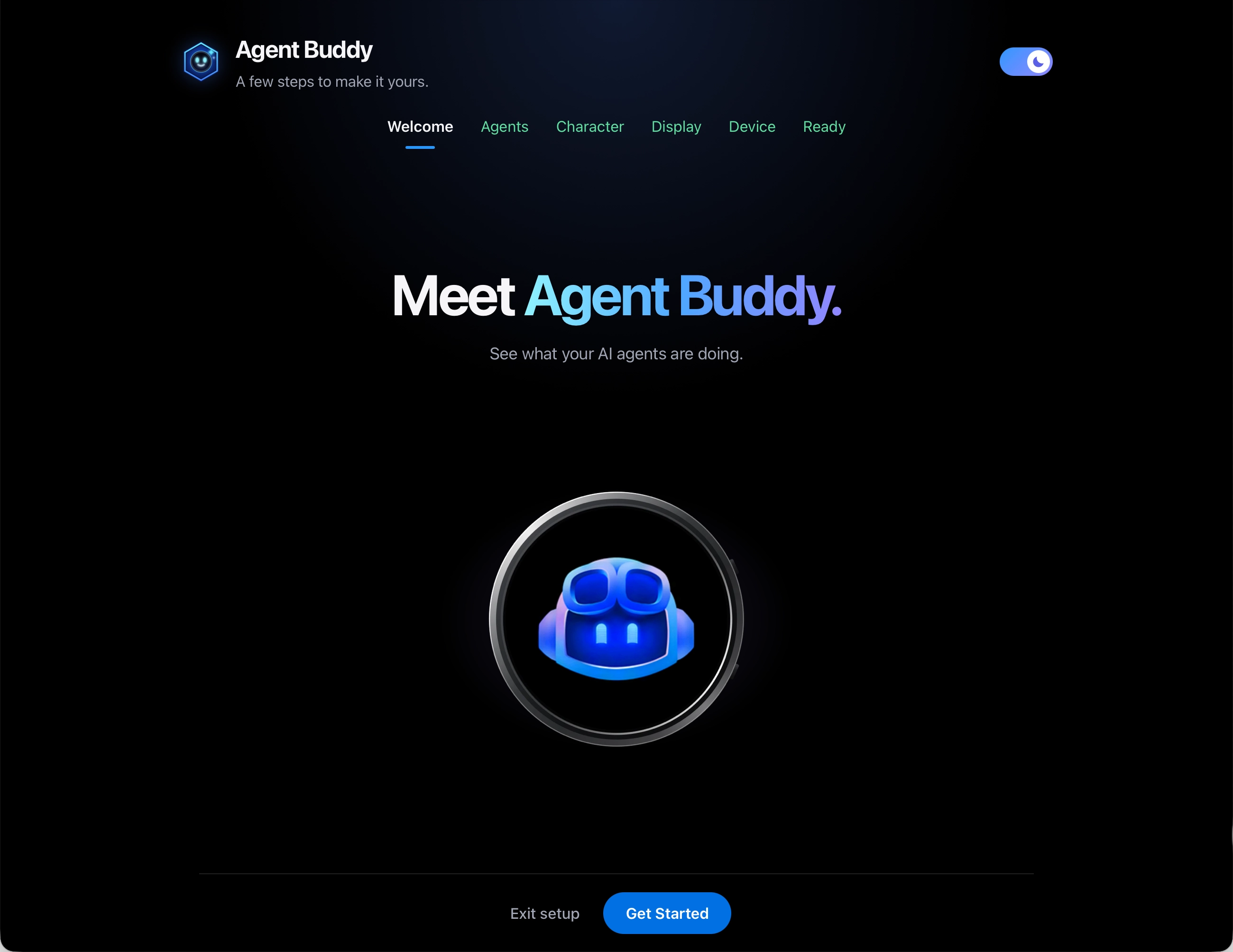
Agent Buddy asks before changing agent configuration. The setup guides also wait for real agent activity. Clicking a button to play an animation does not prove that the hooks work.
The setup checks also had to work on other machines and board models. That exposed assumptions I had made while building on my Mac.
Getting beyond my own setup
Some of the cross-platform lessons had started earlier. Darren’s Windows and WSL build fixes addressed Python command paths and line endings. WSL is Windows Subsystem for Linux, which lets people run Linux tools on Windows. He also contributed touch, Settings, and tooling fixes.
The physical device needed more work too. The September video shows a battery connected, but the service was not yet communicating over Wi-Fi. The character could animate without USB power; it could not receive wireless agent events in that version.
Brady Gaster contributed Wi-Fi reliability and automatic orientation. Networking needed internal RAM that rendering and audio were consuming. Starting networking earlier and moving large records into PSRAM helped preserve that space. His orientation work used the accelerometer to keep the character upright as the board turned.
Support for another board raised a different question: how much of the firmware should be shared? In one GitHub Copilot app session, I asked whether a different Waveshare display would run the existing firmware. The answer was no. The display, pins, and drivers were different.
That discussion led to a board layer, which keeps board-specific code separate from the shared animation code. I asked Copilot to implement it, then review the firmware for duplicate and unused code. I also moved the sensor and audio drivers into that layer. This was the kind of longer development work I was doing in the Copilot app, beyond the initial CLI experiments.
Later in October, Ed Charbeneau fixed sound on the 1.75-C board by selecting its correct audio clock pin. He also added support for the Waveshare LCD-1.54, including smaller-screen controls and display scaling. I followed up with board detection and installation checks so the app could select the right firmware.
The agent connection needed the same care. A failing companion hook could block a Copilot tool call if the companion service was unavailable. I fixed that path. The companion should still let the agent work when the display or service is unavailable.
The service also grew beyond Copilot. I added integrations for other coding agents, each with its own hook events and configuration. The service maps those events into the same Working, Needs attention, and Complete states, so I did not need a separate animation system for each agent.
Where it is now
The project started as esp32-copilot, became Agent Companion, and is now Agent Buddy. It supports GitHub Copilot, Claude Code, Codex, Grok Build, Hermes Agent, and OpenClaw. You can use the desktop app on macOS, Windows, or Linux, with or without a supported device. The device can receive activity over USB or local Wi-Fi.
I also built the website and live demo. The live demo uses the firmware engine compiled to WebAssembly, so visitors can try the character states in a browser. The preview work that helped me inspect the animation is now useful for showing people what the app does.
The short overview video shows the current device and desktop experience.
What I learned
I spent a lot of time telling Copilot that something moved too far, looked strange, or needed another check. The browser preview made those conversations much more useful. I could slow a movement down, find the exact frame that looked wrong, and give specific feedback before another hardware upload.
GitHub Copilot CLI and the GitHub Copilot app helped me work through the code, but they could not decide whether a head turn looked natural to me. For a visual project like this, I would build that preview tool early. The hardware checks still had to follow; I just no longer needed a new flash for every visual adjustment.
You can try Agent Buddy, download the desktop app, or explore the source code.