
GitHub Copilot has grown well beyond code completions in your editor. It now lives in your terminal, too. GitHub Copilot CLI lets you review code, generate tests, debug issues, and ask questions about your projects without ever leaving the command line.
To help developers get up to speed, we put together a free, open source course: GitHub Copilot CLI for Beginners. It’s 8 chapters, hands-on from the start, and designed so you can go from installation to building real workflows in a few hours. Already have a GitHub account? GitHub Copilot CLI works with GitHub Copilot Free, which is available to all personal GitHub accounts.
In this post, I’ll walk through what the course covers and how to get started.
What GitHub Copilot CLI can do
If you haven’t tried it yet, GitHub Copilot CLI is a conversational AI assistant that runs in your terminal. You point it at files using @ references, and it reads your code and responds with analysis, suggestions, or generated code.
You can use it to:
- Review a file and get feedback on code quality
- Generate tests based on existing code
- Debug issues by pointing it at a file and asking what’s wrong
- Explain unfamiliar code or confusing logic
- Generate commit messages, refactor functions, and more
- Write new app features (front-end, APIs, database interactions, and more)
It remembers context within a conversation, so follow-up questions build on what came before.
What the course covers
The course is structured as 8 progressive chapters. Each one builds on the last, and you work with the same project throughout: a book collection management app. Instead of jumping between isolated snippets, you keep improving one codebase as you go.
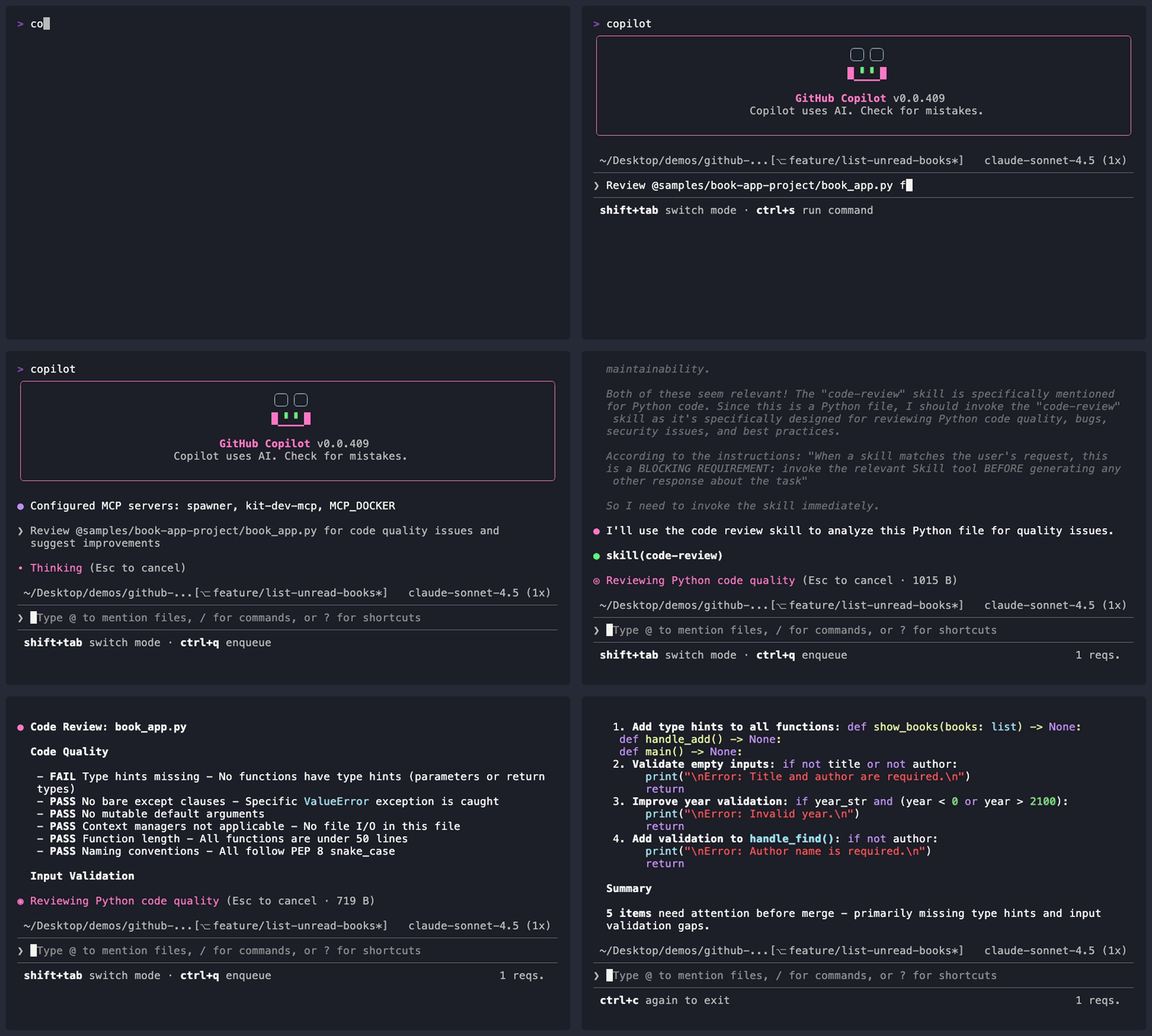
Here’s what using GitHub Copilot CLI looks like in practice. Say you want to review a Python file for potential issues. Start up Copilot CLI and ask what you’d like done:
$ copilot
> Review @samples/book-app-project/books.py for potential improvements. Focus on error handling and code quality.
Copilot reads the file, analyzes the code, and gives you specific feedback right in your terminal.
Here are the chapters covered in the course:
- Quick Start — Installation and authentication
- First Steps — Learn the three interaction modes: interactive, plan, and one-shot (programmatic)
- Context and Conversations — Using
@references to point Copilot at files and directories, plus session management with--continueand--resume - Development Workflows — Code review, refactoring, debugging, test generation, and Git integration
- Custom Agents — Building specialized AI assistants with
.agent.mdfiles (for example, a Python reviewer that always checks for type hints) - Skills — Creating task-specific instructions that auto-trigger based on your prompt
- MCP Servers — Connecting Copilot to external services like GitHub repos, file systems, and documentation APIs via the Model Context Protocol
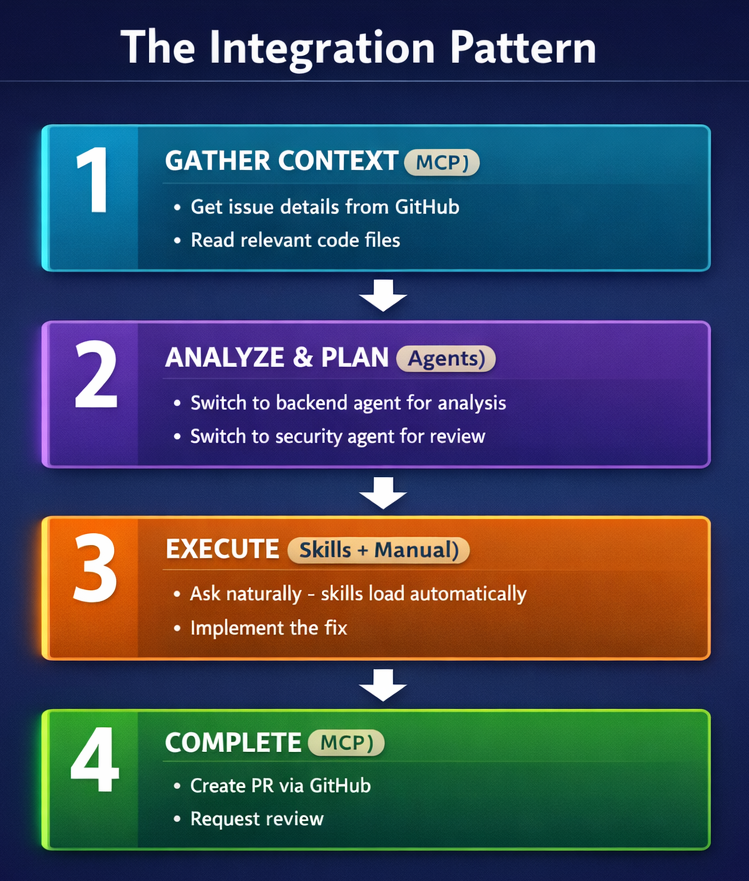
- Putting It All Together — Combining agents, skills, and MCP servers into complete development workflows

Every command in the course can be copied and run directly. No AI or machine learning background is required.
Who this is for
The course is built for:
- Developers using terminal workflows. If you’re already running builds, checking git status, and SSHing into servers from the command line, Copilot CLI fits right into that flow.
- Teams looking to standardize AI-assisted practices. Custom agents and skills can be shared across a team through a project’s
.github/agentsand.github/skillsdirectories. - Students and early-career developers. The course explains AI terminology as it comes up, and every chapter includes assignments with clear success criteria.
You don’t need prior experience with AI tools. If you can run commands in a terminal, you can learn and apply the concepts in this course.
How the course teaches
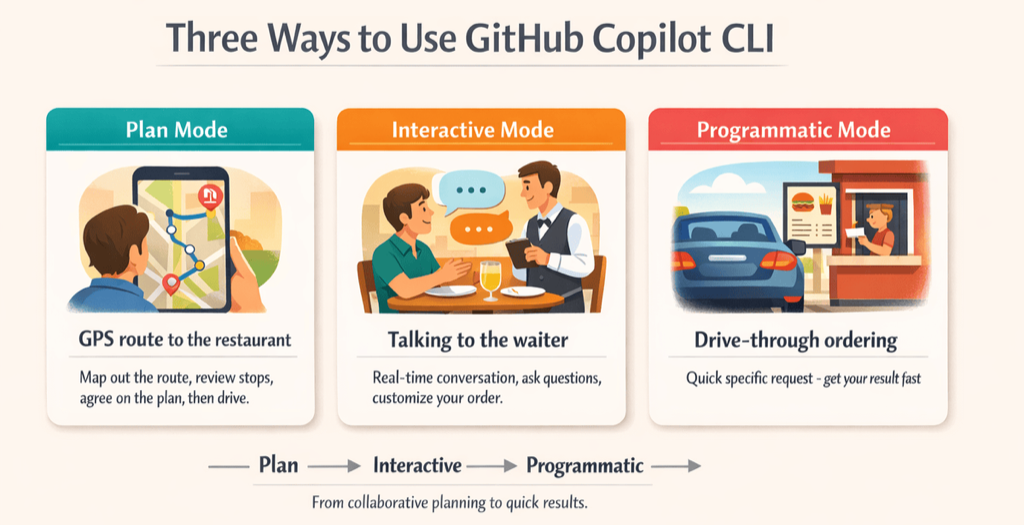
Each chapter follows a consistent pattern: a real-world analogy to ground the concept, then the core technical material, then hands-on exercises. For instance, the three interaction modes are compared to ordering food at a restaurant. Plan mode is like mapping your route before you start driving. Interactive mode is a back-and-forth conversation with a waiter. One-shot mode (programmatic mode) is like going through a drive-through.
Later chapters use different comparisons: agents are like hiring specialists, skills work like attachments for a power drill, and MCP servers are compared to browser extensions. The goal is to give you a mental model before the technical details land.
The course also focuses on a question that’s harder than it looks: when should I use which tool? Knowing the difference between reaching for an agent, a skill, or an MCP server takes practice, and the final chapter walks through that decision-making in a realistic workflow.
Get started
The course is free and open source. You can clone the repo, or open it in GitHub Codespaces for a fully configured environment.
GitHub Copilot CLI for Beginners
For a quick reference, see the CLI command reference.
Subscribe to GitHub Insider for more developer tips and guides.